
Your personal fitting room
Your closet,
on you.
Lona puts the clothes you own, and the ones you're eyeing in a store, on a photo of you. Tap a piece and see the whole outfit on you, photorealistic, before you get dressed.
No account needed. Your closet stays on your phone.


Sped up. In the app a new look takes about 15–20 seconds; ones you've tried are instant.
- Photorealistic try-ons
- Every piece recognised
- Help deciding what to wear
- Colours that suit you
- Try store items before you buy
How it works
Three steps to dressed.
-
1

 Average

Add a photo of your face
Pick your body type and height, and Lona makes a realistic head-to-toe photo of you to dress.
-
2Found 5 pieces

Snap your clothes
One piece or a whole bed of them. Each one is found, named and tagged, and gets a clean product photo.
-
3Dressing you…

Tap to get dressed
Pick pieces and you're wearing them, rendered on you in about 15–20 seconds. Combinations you've tried before load instantly.
Closet
Snap a pile. Get a closet.
Take a photo of one piece or a whole bed of them. Lona finds every piece, names it, reads the brand and picks its category, then gives it a clean product photo.
Found 5 pieces
Untick what you don't want. Tap a picture to switch between your photo and a clean AI version.
-
Cream cable-knit sweater Add brandTop Product photo made with AI. Check it matches.
-
Light wash straight jeans Add brandBottom Product photo made with AI. Check it matches.
-
Terracotta satin blouse Add brandTop Product photo made with AI. Check it matches.
-
Olive satin midi skirt Add brandBottom Product photo made with AI. Check it matches.
-
Black ankle boots Add brandShoes Product photo made with AI. Check it matches.
Every photo is recognised
Simulated and sped up. Tap a tick, a picture, the switch or Add.
My closet and Wishlist
Switch to Wishlist, pick a category or filter. Hold a piece to select a few, then tap Try on.
-
One piece or a whole pile. Take a photo or pick up to 20. Untick what you don't want, and rename a piece or change its category before it's added.
-
Clean product photos. Each piece is cut out of your photo and redrawn whole, laid flat on a plain backdrop, so it matches the store photos in your closet. Prefer your own photo? Switch back to it.
-
Straight from an order. Screenshot an order page, confirmation email or receipt. Each item comes in with its exact name, colour, size and price.
-
Tagged for you. Every piece gets its colours, a weather tag and a style, from Sporty to Smart. Filter by brand, style, weather or colour, or show just what suits your colouring.
-
Pick a few, try them on. Hold a piece to start selecting, tick a few more and tap Try on. Bought something on your wishlist? Move it to your closet.
Studio
Tap a piece. You're wearing it.
Your clothes float in a glass panel over your photo. Tap a piece and you're wearing it, in a photorealistic picture of you. Swap the top and the jeans stay on.
Try it: tap a piece, then Compare. Swipe the clothes up for more.
Name
Look · 26 Oct
Categories
Optional. It shows up in each one you pick, in Outfits.
Sped up here. In the app a new look takes about 15–20 seconds, and ones you've tried load instantly.
-
Photorealistic, on you. Each look is a picture of you in the actual pieces, made at 2K, sharp on a full iPhone screen.
-
The fit you chose. Give a piece its fit, from Slim to Oversized, or Skinny to Wide for bottoms, and the try-on is told how it sits on you.
-
The same height every time. Each render is measured and lined up with your own photo, so a new pair of jeans doesn't make you taller.
-
Compare side by side. Pin a look on the left and the right side follows as you change clothes. Combinations you've tried are saved, so they come back instantly.
-
Store pieces next to your own. Try something from a store with the clothes you already have. It's marked Trying until you add it or let it go.
Help me decide
Not sure what goes with it? Ask.
In the Studio, ask about the outfit you have on, in your own words or with one tap. Lona picks the answer from the clothes you own, puts it on you and tells you why.
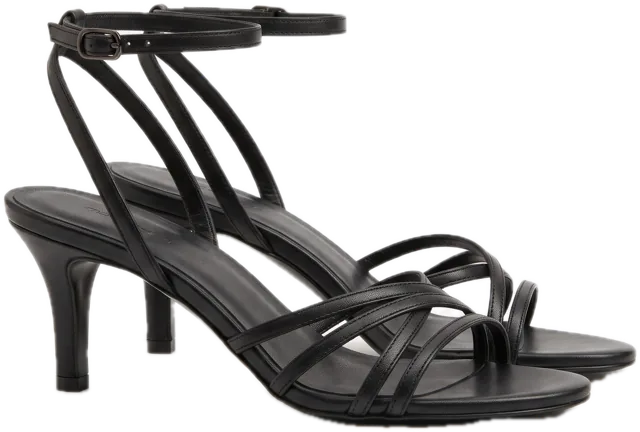
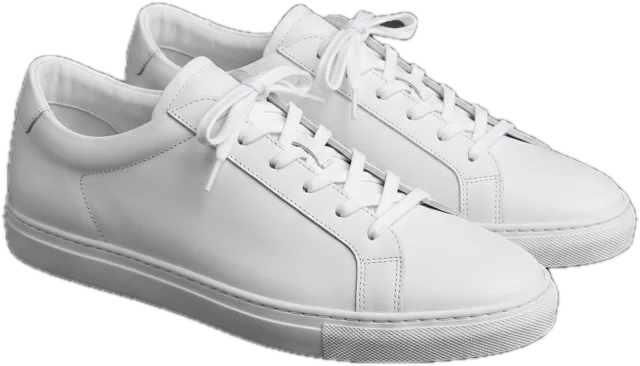
Try it: ask a question.
Sped up here. In the app a new look takes about 15–20 seconds, and looks you've tried before are instant.
-
Only what you own. It picks from My closet, never from your wishlist or a piece you're still trying on.
-
It sees the whole outfit. It looks at the picture of you wearing it, if you've ticked “This is a photo of me”, and at photos, tags and colours of your clothes. One request, no web search.
-
On you at once. The pick goes straight on, so you see it before you save. A short note says why, and Undo puts back what you had on.
-
Straight with you. If nothing you own answers the question, it says why, and you can ask another way.
-
On saved outfits too. In Outfits, swipe up on a look and tap Ask AI. It opens in the Studio with the pick on.
Outfits
Every look you love, one swipe away.
Every outfit you save is you, wearing it, standing in a row with the others. Swipe through them in your own order, pick a category, or open one and swap a piece.
Drag the outfits into the order you want to swipe through them. The first one here comes first.
Delete this outfit?
The clothes stay in your closet.
JPEG image
Help me decide
Ask about the outfit you have on. The answer comes from clothes you own.
Swipe, or use the arrows. Tap the small arrow under the name for more, or hold a look (right-click on a computer).
Left and right arrow keys move between outfits. On the outfit in the middle, the up arrow shows its actions and Shift F10 opens its menu.
Scroll down in the phone and tap a piece to swap it. New looks show in about 2 seconds here, 15 to 20 in the app; ones you've tried before are instant.
-
In your order
Tap the sort button and drag the outfits by their handles. The first one is the first you see.
-
Categories you make
Office, Night out, anything you like, and an outfit can be in several. Hold a look to make it a favourite.
-
Swipe up for more
Share its picture, modify it in the Studio, ask AI which of your clothes would go with it, or delete it.
-
Swap a piece
Open a look and tap a piece to put it on. It stays a draft until you tap Save outfit.
-
Buy what's missing
Pieces from your wishlist get a Buy link under Complete the look.
Style me
Say where you're going. Get dressed for it.
Tell Lona the occasion in your own words. It looks up what people wear there, then picks an outfit from your closet and shows it on you.
-
It does the homework.
It looks up the dress code, and the weather when you say where and when, and shows the sources it used.
-
Only from your closet.
It sees photos of the clothes in My closet, with their tags, and picks only from those, never your wishlist. Near your face, it prefers your colours.
-
Honest about what's missing.
It explains why the outfit works and names up to three pieces you don't own that would complete it. Tap one to find where to buy it.
-
Not quite it? Say so.
Ask for something warmer, or no jeans, and get another idea. Save the one you like to Outfits, or open it in the Studio.


Where are you going?
Describe the occasion and I'll look up what people wear there, then put an outfit together from the 14 pieces in My closet.
e.g. Jazz concert in Utrecht tonight
Ideas
Looking up the dress code…
“Jazz concert in Utrecht tonight”


Jazz concert, Utrecht
Rain-ready leather and denim
Dark layers suit a relaxed jazz crowd. The leather jacket keeps the rain off, and ankle boots cope with wet streets better than sneakers.
Light wash straight jeans Black ankle boots
 Black ribbed top
 Black leather jacket
Dress code
Jazz clubs are relaxed: dark jeans or trousers with a jacket are the norm, and you'll stand for part of the night.
Rain from 7 pm, 11 °C
Sources
What to wear to a jazz club Utrecht weather tonightWould complete it
Not quite it?
e.g. warmer, no jeans, more relaxed
Pick an occasion
Not quite it?
A simulation, sped up. In the app, styling takes longer, and a new outfit takes about 15–20 seconds to render on you; ones you've tried before appear instantly.
Shop
Try it on before you buy it.
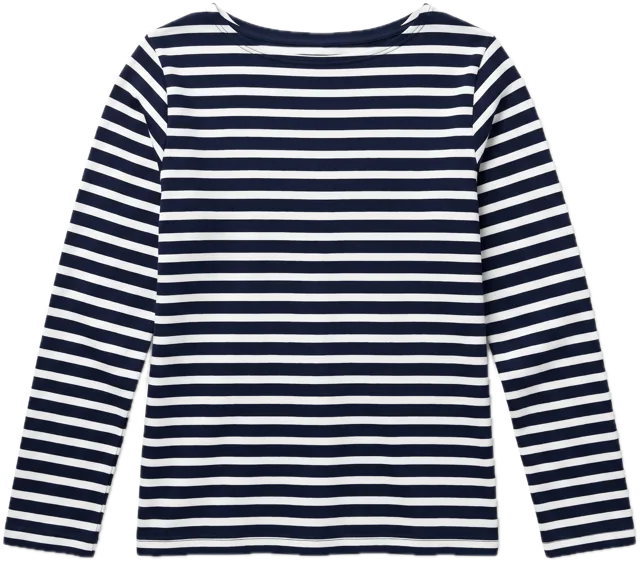
Bring in a piece from any store, or a whole look from a screenshot, and see it on you next to the clothes you already own.
- Lona finds each piece in a screenshot or photo, makes a clean product photo of it and puts the look on you, with the screenshot pinned alongside. Where to buy finds the piece or a look-alike.
- Share a product page from your browser or a store's app, or paste its link, and tap Try on me. Lona takes just the piece, even from a photo of a model wearing it.
- While you try it on, a slim bar says how many of your clothes it goes with and how its colour suits you. Tap it for those pieces, and outfits with it that open on you.
- Prices on your wishlist are checked while you use the app. When one drops, its card gets a small % tab and you get one notification.
Shop
Or open any product, tap Try on me, and see it on you next to the clothes you already own.

 Inspo
 1
2
3
4
5
Found 5 pieces
Pick the pieces to try on. Tap Shop to find where to buy one.
Satin blouse
€59
Colour: Teal
XSSMLXL Add to bag

 Lona
Try this on
Lona opens the product so you can try it on next to the clothes you own.
Open in Lona Removing background…
COLOURS
Tick other colours to add them too, each as its own item.
DETAILS

Goes with your closet
This satin blouse works with 9 things you have
Lifts your denim and black trousers by day, and takes your heels out at night.
Outfits with it
Shop
Or open any product, tap Try on me, and see it on you next to the clothes you already own.
On your wishlist
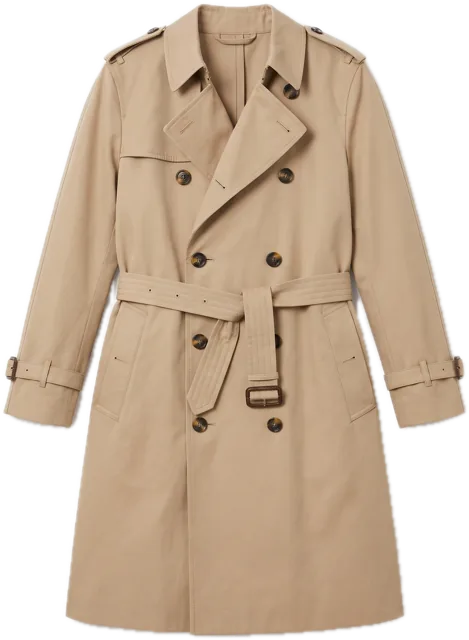
Beige trench coat
Outerwear·€119.00€149.00Wishlist
Price checked 10 seconds ago
Sped up for the demo. In the app a new try-on takes about 15–20 seconds; looks you've tried before load instantly.
-
From any store
Paste any product link, or share it from your browser or a store's app. The piece keeps its store link for later.
-
Every colour on the page
When a page offers several colours, tick the ones you like and each is added as its own piece.
-
The fit you'd buy
Set a piece's fit, from slim to oversized, as you add it. The try-on shows how it sits on you.
-
Nothing's added until you say so
What you're trying is marked Trying. + Wishlist keeps it (+ Closet if you own it), and the ✕ lets it go.
You
Your look, your body, your colours.
From one face photo, Lona makes a realistic head-to-toe photo of you, on a body like yours, to try clothes on. It reads your colouring too, and checks every piece against it.
Tick “This is a photo of me” for your face photo.
You changed your body or height.
Made with AI from your photo
Face photo
For the best result
Face the camera, eyes open
Hair visible, nothing covering your face
Even daylight, plain background
Your try-on body
Try-ons are made on this body, so clothes look closer to how they'd sit on you. Pick the closest silhouette, or add a full-body photo for a closer match.
Average
Already made · switching is instant
Your colouring
Your dark brown hair and eyes and light-medium skin with a warm undertone suit warm, earthy colours with some depth, like terracotta, camel and olive.
Wear near your face
- Terracotta
- Rust
- Camel
- Olive
- Warm ivory
- Chocolate
- Mustard
- Teal
- Tomato red
- Forest green
Keep away from your face
- Icy pink
- Lavender
- Optic white
- Cool grey
Fine lower down, as trousers or shoes.
Made from the colours you picked. Tap one to change it.
A working copy of the Me tab, with example settings. It doesn't make new looks or palettes: in the app, AI does that.
Check a piece
Tap one of your pieces to see how its colour works with your palette.
Terracotta satin blouseTop
Trousers and shoes are never tricky: they're worn away from your face.
-
A photo of you, head to toe. AI makes it from your face photo, body type and height, and every try-on is made on it. Nothing goes to AI until you tick “This is a photo of me”.
-
A body like yours. Man or Woman, in six illustrated body types from slim to plus-size, or a full-body photo for a closer match. Your height refines it.
-
Your colours, from your photo. Hair, skin and eye colour are read from your face photo; tap one to correct it. The undertone is yours to set. You get ten colours for near your face, and four to keep away from it.
-
Used across Lona. Every piece is checked against your palette. Filter your closet by Suits my colouring, and Style me prefers your colours near your face.
Privacy & AI
Your closet stays yours.
Lona asks before anything goes to AI, shows you exactly what's sent, and works without it. Everything else stays on your iPhone.
AI & your photos
Lona's AI features run on Google's Gemini AI. Here's what that means for your photos before anything is sent.
What's sent
- Your face photo, and a close-up of your eyes
- Your body photo, if you add one
- Your body type and height, and your colouring (hair, skin and eye colour)
- Photos of your clothes, with their names and brands
- Screenshots you add. Order screenshots can show your name or address, so crop them first.
- What you type into Style me, Help me decide and the “Where to buy” search
Who gets it
Google, through its Gemini AI. Style me and “Where to buy” also use Google Search.
Why
To make your look and try clothes on you, read your colouring, recognise and tidy up your clothes, and find where to buy them. While AI is on, your clothes are also tagged and checked against your colours in the background.
How long
Google keeps requests for up to 55 days to detect abuse, and also keeps Google Search requests for 30 days. Lona's own server passes requests on without storing them, and keeps only a coded App Store ID and how much AI you've used. Everything else stays on your phone.
Your choice
You can turn AI off and delete your photos at any time in Me → Privacy & AI.
Privacy policy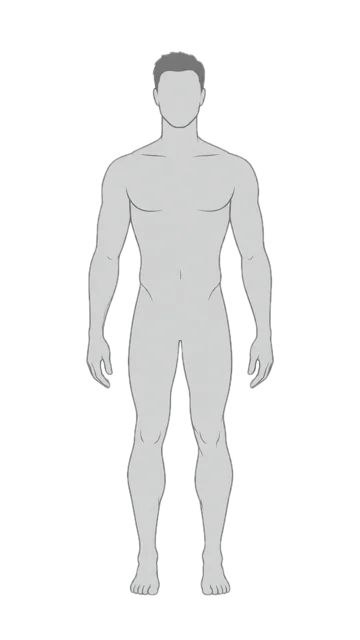
Tap Agree, the tick box or the AI switch to try it. It's a demo: nothing you tap here is sent anywhere.
-
Kept on your iPhone. No account and no iCloud sync. Your closet, photos and looks are saved on your phone.
-
AI only with your OK. Nothing goes to AI until you tap Agree. Turn it off any time in Me → Privacy & AI: your closet and outfits still work, and outfits are shown on a mannequin.
-
Only your own photos. A face or body photo is used only once you tick “This is a photo of me”. Lingerie, underwear and full swimwear are never sent to the try-on.
-
Sent with storage off. Requests go from your iPhone to Google's Gemini with storage switched off. Google keeps them for up to 55 days to detect abuse, and doesn't use them to train its AI.
-
AI pictures say so. Share one and it carries a small Made with AI · Lona mark. Every AI picture also has “Report a problem with this image”.
The details are in our privacy policy and terms of use.
Questions
Good to know.
When can I get Lona?
Lona is coming soon to iPhone.
Which iPhones does it work on?
Any iPhone running iOS 18 or later.
Do I need an account?
No. There's nothing to sign up for, and your closet, photos and outfits are saved only on your iPhone. AI features send what they need to Google, and only after you agree.
Does it work without AI?
Yes. Lona asks before anything goes to AI, and you can say no. Without AI, outfits are shown on a mannequin, and your closet and outfits still work. You can turn AI on any time in Me → Privacy & AI.
Can I try on clothes from any store?
Paste a product link, or share a product page from Safari or a store's app straight to Lona, and tap Try on me. You can also try on a whole look from a screenshot, or from a photo of an outfit you saw out and about.
Is Lona only for women?
No. Choose a woman's or a man's body in one of six body types, from slim to plus-size, or add a full-body photo for a closer match. Your height refines it.
How real do the try-ons look?
Each one is a photorealistic picture of you wearing the actual pieces: their colour, fabric, print and cut, in the fit you set, from slim to oversized. Lona keeps you the same height in every render, so you compare the clothes, not the photo. It's an AI picture, so for something you're buying, check the size guide on the store's page.
See it on you first.
Your whole closet, and what you're eyeing in the shops, in one fitting room in your pocket.
Coming soon toiPhone


